Chat beside every page: ask, go there, get it done ✨
Your AI assistant just moved in right next to your work. Choose Chat in the header of any page, and it opens in a panel beside it. It sees the page you're on, takes you wherever you ask, and makes the changes you approve, without you ever leaving the page.
It knows what you're looking at
No more explaining where you are or copying data into a chat. Chat knows which page is beside it and how its table is filtered and sorted. Ask Which three findings should we tackle first? and it reads the findings on your screen, looks at costs, due dates and hazards, and tells you where to start. In a hurry? Choose Explain this page, What needs my attention? or Summarize this page for a colleague, and the answer starts right away.
It takes you there
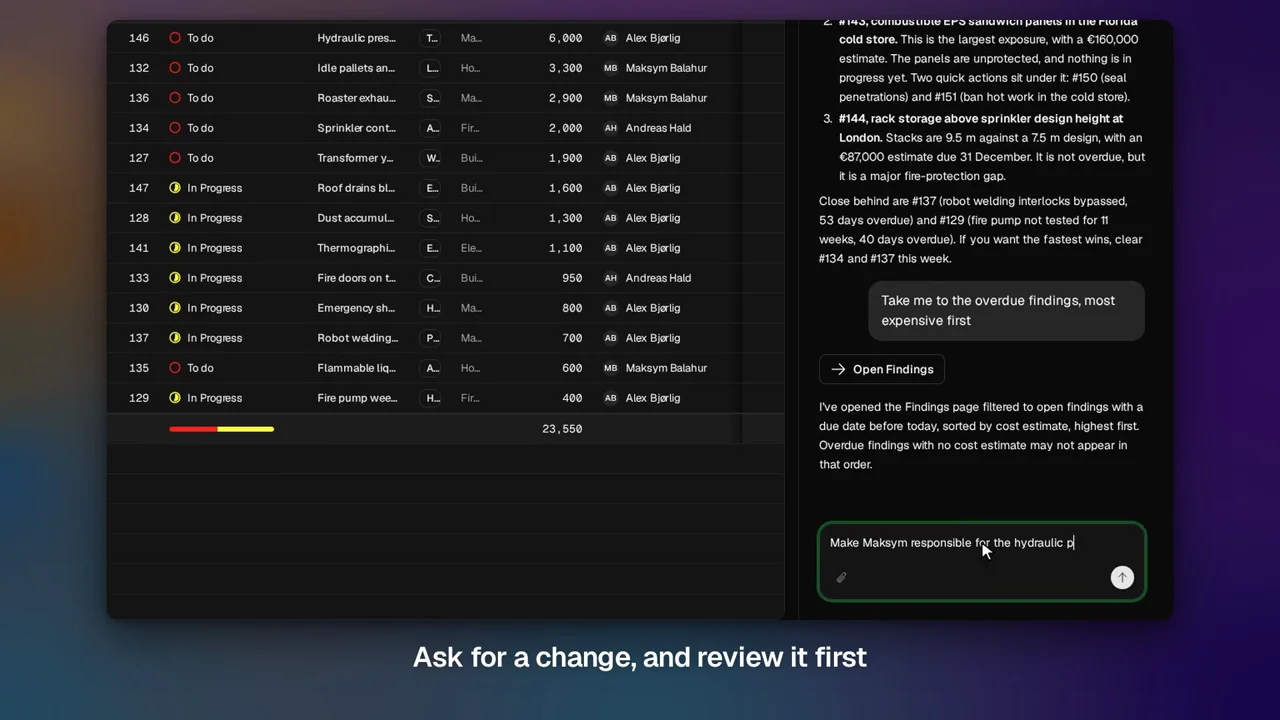
Ask for the overdue findings, most expensive first, and the page beside the chat goes there, with the filters set and the table sorted. Chat tells you what it opened and keeps a link in the conversation, so you can get back to it later. Taking you to pages is available in Enterprise organizations.
It does the work, and you stay in charge
Ask Chat to reassign a finding, move a due date or add new findings. It checks the records first, then tells you exactly what it will change, in plain language. Nothing changes until you choose Confirm changes. Once you do, Chat makes the change with your own permissions, and the page beside you updates straight away.
Pick up where you left off
The conversation's name at the top of the panel opens your earlier conversations. Choose one to continue it beside the page you're on. And as you move between pages, your conversation comes along.
Key benefits
- No context switching — Ask, check and change things without leaving the page
- Answers from your real data — Chat reads the page you're on, so you don't have to describe it
- Straight to the right view — The right page, with the right filters and sort
- You approve every change — A clear proposal first, and nothing changes until you confirm
- Your permissions, always — Chat only sees and changes what you could yourself
The chat panel is in beta. Chat is available once your IT admin turns on AI for your organization and gives you access under Settings → AI. Read more in our guide to the AI assistant.